Top Performers
Last 14 Days · Per-Game Avg · Min 2 Games
Map Performance
Battle Calendar
Click any match to view the scoreboard
—
Roster — Aggregate Performance
Click a player for their full profile
| # | Name | Weapons | Games | Wins | Losses | Win % | Defeats | Assists | Damage Dealt | Damage Taken | Healed |
|---|
Match History
Top Performers · Enemies
Enemy Roster
0 enemies tracked · Click to inspect · Averages
Enemy
Guild
Weapons
Kills
Damage
Assists
Heals
Select your player
Choose a name from the roster to view your personal stats, trends and match history.
How to use this page
Use this page to consolidate player names. If someone has competed under multiple names over time — name changes, typos, OCR misreads, alt accounts — you can collapse them all into one identity. All their match stats, history, and aliases carry over to the name you keep.
Merge Queue
New OCR'd names that look like probable duplicates of an existing player show up here. Each row is one suspected duplicate — click Review to see the suggested matches.
- Merge — combines the two names into one. Pick this when you're confident it's the same person.
- Keep separate — marks them as different people. The suggestion won't come back.
- Candidates are colour-coded by confidence: green = alias hit (very likely), blue = same name elsewhere, gray = visually similar. Only your guild's friendly-side names appear — you can't merge enemy players.
Merge Known Names
Manually consolidate any two known names — useful when the queue hasn't surfaced a pair you already know about.
- Check the box next to every name that belongs to the same person.
- Click Merge selected → in the bar that appears.
- Click Keep this name → on whichever name you want to keep. The rest are removed and their stats fold in permanently.
Merge Known Names
Consolidate old names into a current one — stats, aliases and history all carry over
Loading…
Members
—
| In-Game Name | Weapons | Discord Name | Role | Joined |
|---|
Add Match
Select a map…
(excludes all players from enemy insights)
Drag screenshots here, or
PNG · JPG · Up to 15 MB total · Max 12 files
- Use Ctrl+Shift+S (Windows Snip) to capture the scoreboard — screenshots are saved to your Pictures folder by default for easy drag & drop
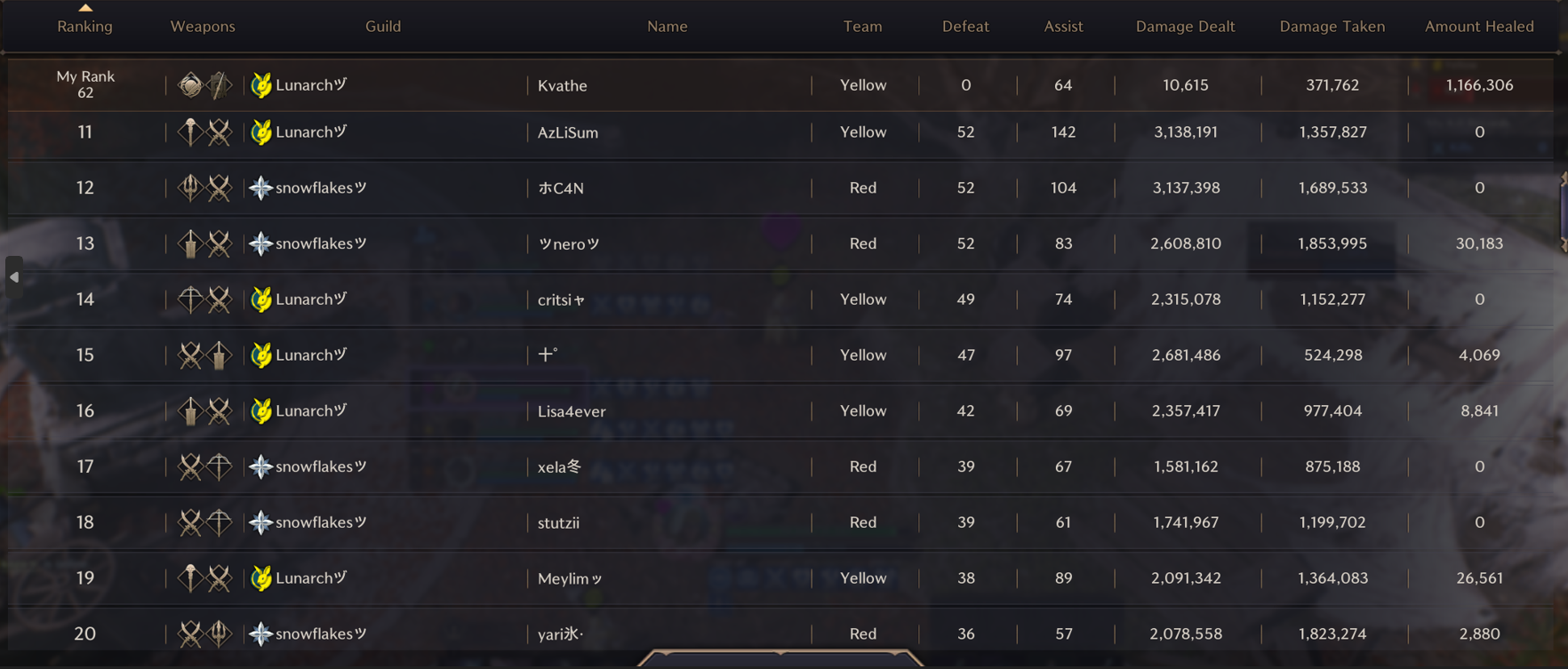
- Include the column headers (Ranking, Weapons, Guild, Name, etc.) in your capture
- Make sure no player names are cut off — scroll so all names are fully visible before snipping
- Capture all relevant data columns — Defeat, Assist, Damage Dealt, Damage Taken, and Amount Healed
- Avoid capturing unrelated UI elements outside the scoreboard table
View example screenshot